
Step-by-step guide
Connecting the ZKwP FDS timing gates
The ZKwP FDS gates connect to Agilix through the browser. There is no program to install. After a one-time pairing, the time from the photocells goes into the dog's result on its own.
Before you start
- A computer with Google Chrome or Microsoft Edge. Safari and Firefox cannot connect to USB devices.
- The ZKwP FDS gate set, switched on, with its USB cable.
- Organizer access to the competition in Agilix.
Pairing the gates
-
Step 1
Plug the gates into the computer
Switch the gate set on. Connect it with the USB cable to the computer you will run the class on.
-
Step 2
Open the gate settings
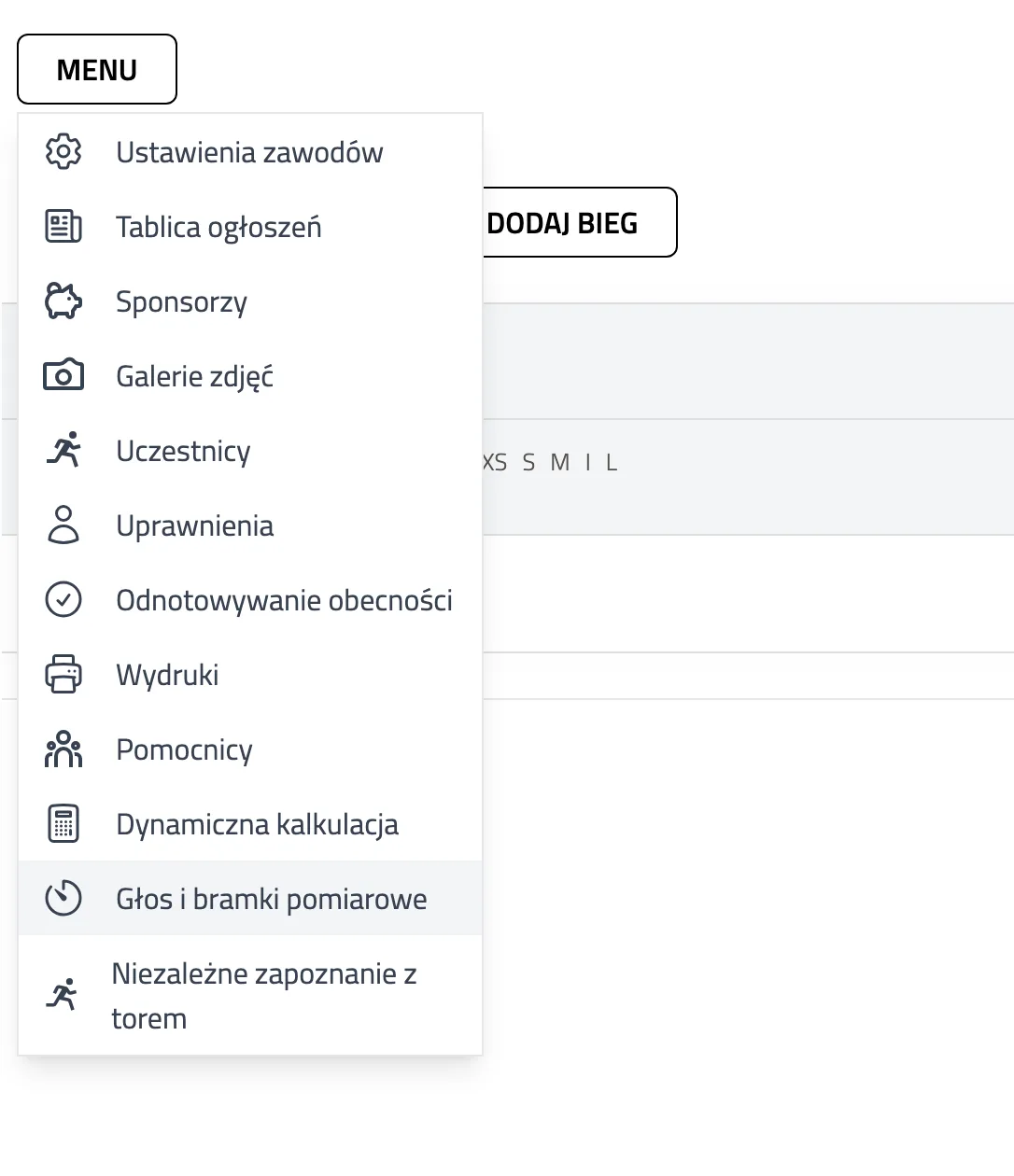
Go to “My competitions” and choose your competition. On the competition plan, click “Menu” and then “Voice and Gates”.
-
Step 3
Tick the ZKwP gates
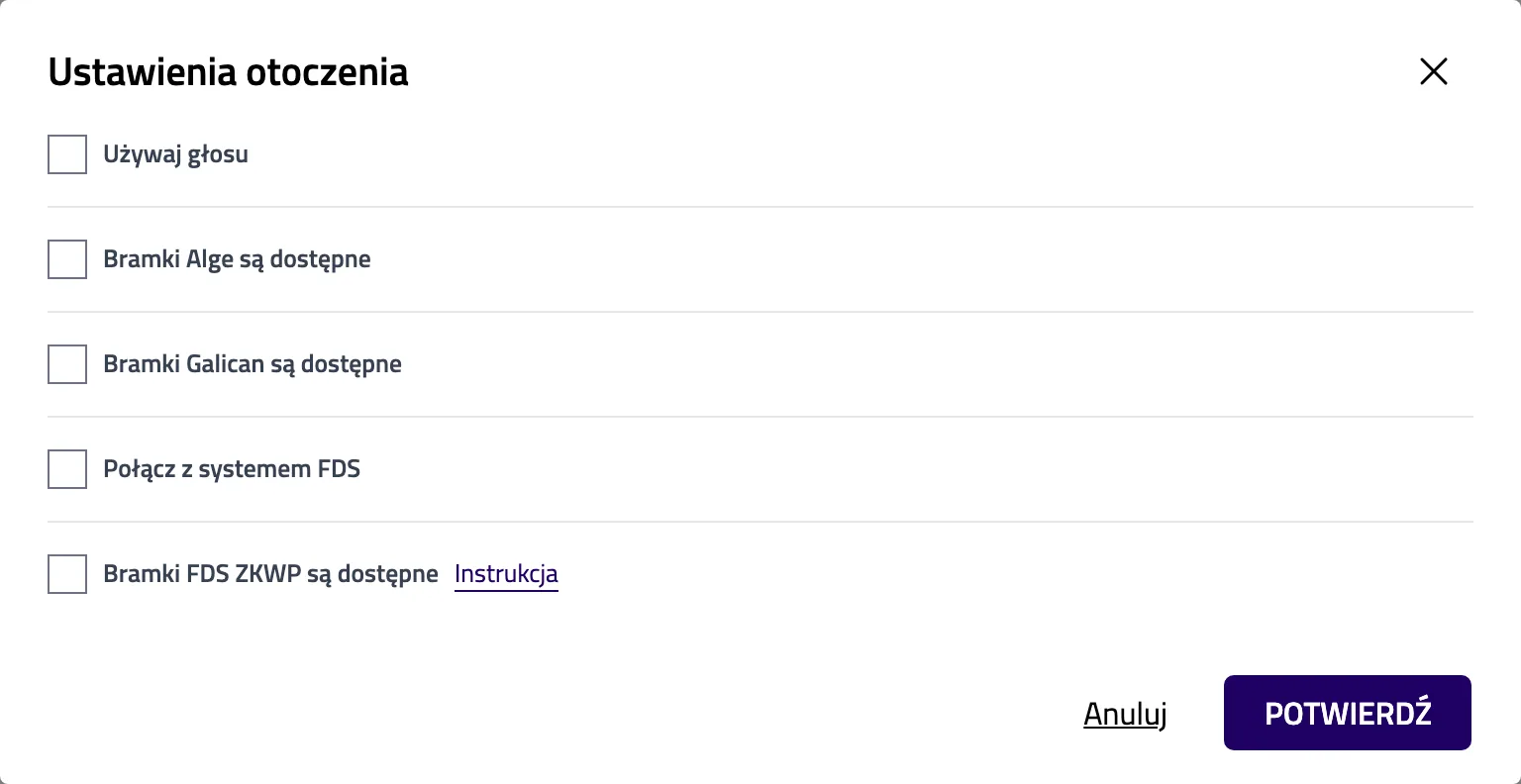
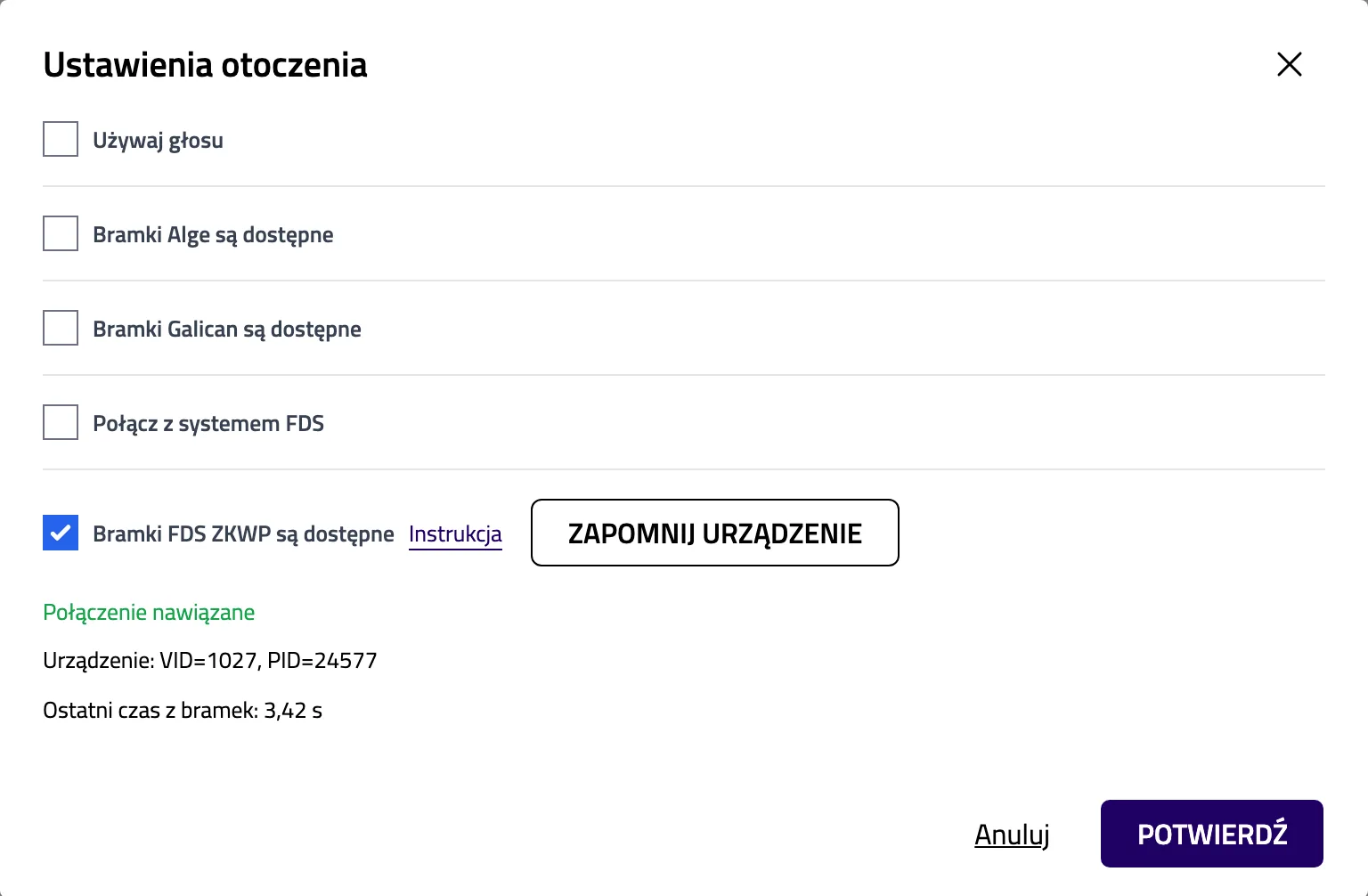
Tick “FDS ZKWP gates are present”. The other boxes are for other timing systems. You can leave them empty.
-
Step 4
Pick the gates in the browser window
The browser opens its own window with a list of USB devices. Choose the gate set and click “Connect”. If there are several entries, unplug the gate cable for a moment and see which one disappears.
-
Step 5
Check the connection
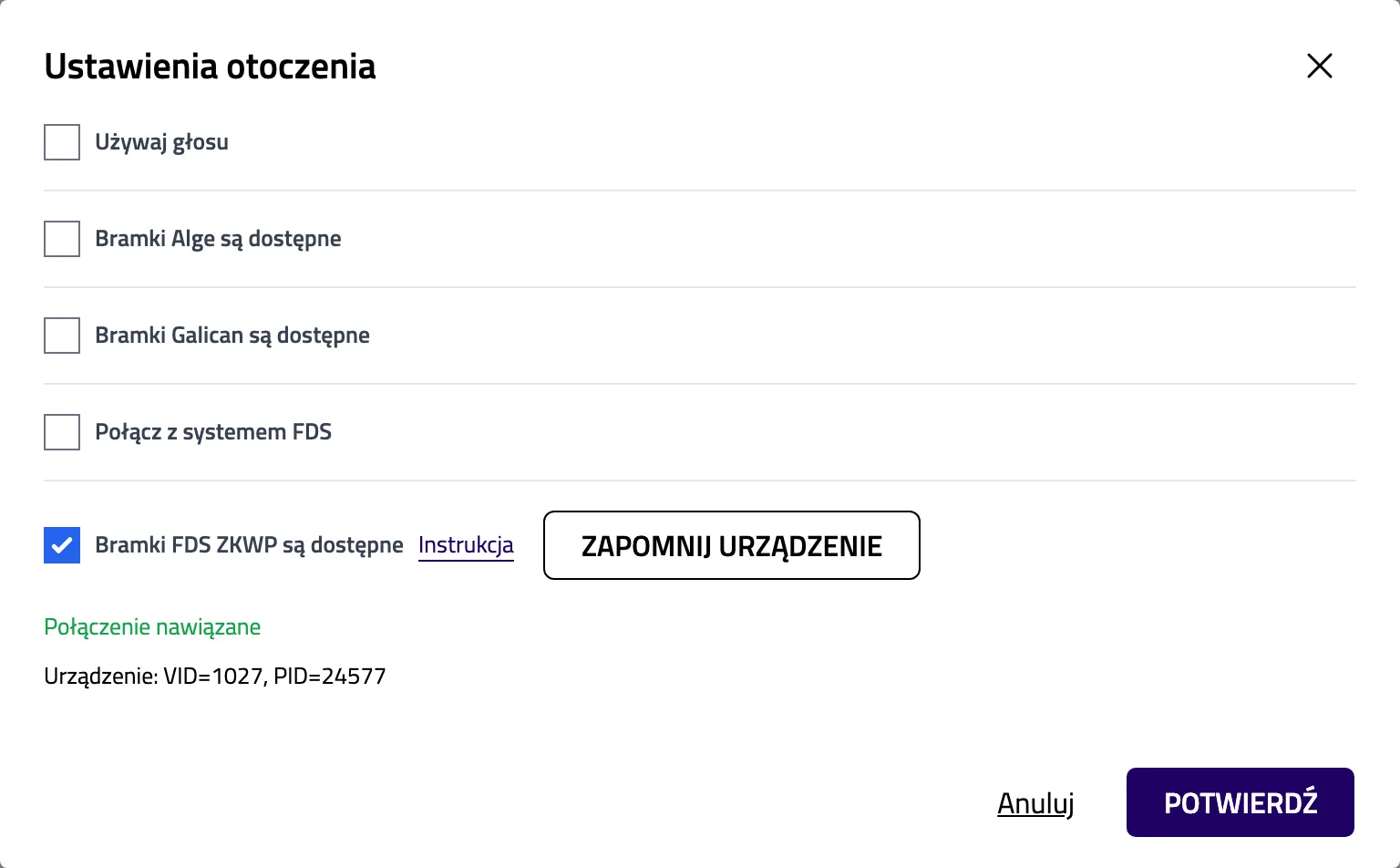
A green “Connection successful” appears under the box. Click “Confirm”. The browser remembers the gates on this computer.
Running a class with the gates
-
Step 6
Open the run
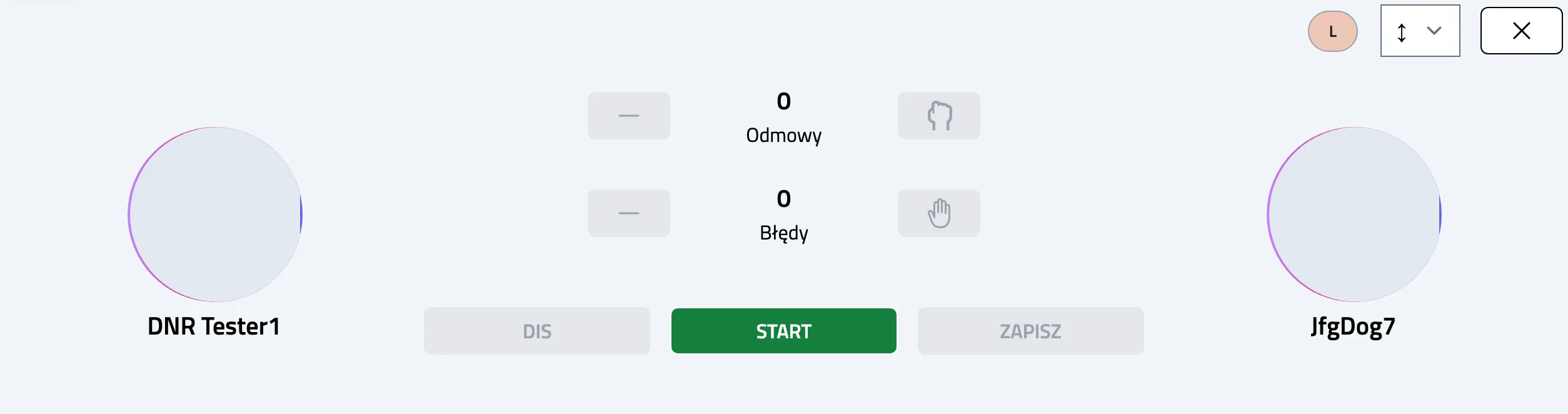
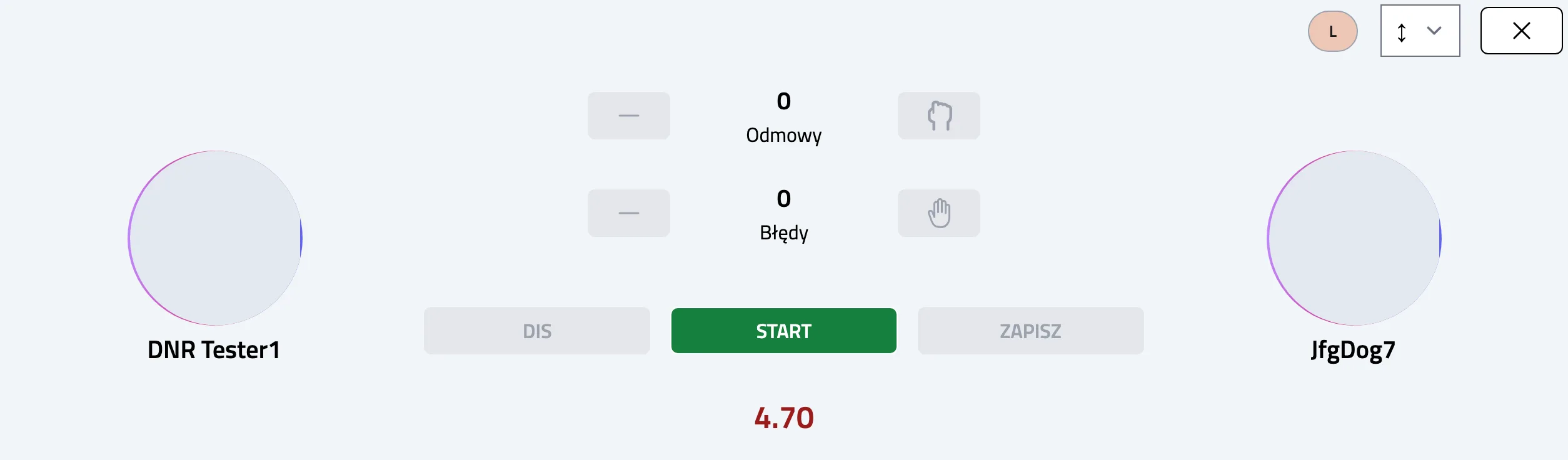
On the competition plan, click the name of the run. The run screen connects to the remembered gates by itself. The dog at the start waits for the “Start” button.
-
Step 7
The dog crosses the start gate
A clock starts running under the buttons. Click “Start”. Agilix takes the start moment from the gate, not from your click.
-
Step 8
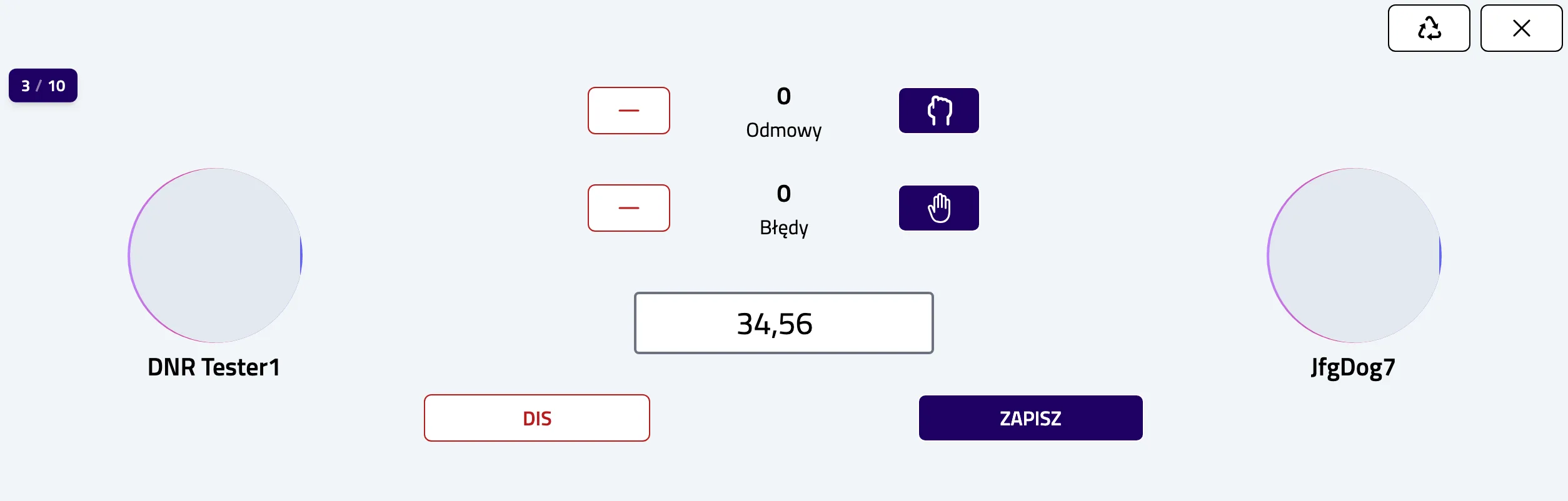
The dog crosses the finish gate
The measured time fills the seconds field by itself. Add faults and refusals. Check the result and click “Save”.
Testing without photocells
You can check the connection without setting up the photocells. The box alone is enough. It has two buttons: usually the left one is start and the right one is finish. Open the “Voice and Gates” window with the gates connected. Press start on the box, then finish a moment later. “Last time from the gates” appears under the device details with the measured time.
The next day of the competition
On the same computer and in the same browser there is no need to pair the gates again. Plug them in and open the run. You only pair again on another computer or in another browser.
When something does not work
The gates are not on the device list
Check that the set is switched on and the cable is plugged in firmly. Try another USB port. Make sure you are using Chrome or Edge.
It keeps showing “Connecting...”
Click “Select Device” and pick the gates again. Also close other Agilix tabs with the competition plan or a run open. The gates can be connected to only one tab at a time.
The time did not appear after the finish
The finish time reaches the run only after “Start” was clicked. It also does not replace a time typed by hand. If the gate cable was unplugged, reload the run page after plugging it back in. Type any missing time from the gate display and click “Save”.
A different gate set
Untick “FDS ZKWP gates are present” and tick it again. The browser shows the device list, and you pick the new gates.
Help
Gates still not working?
Write to us. Tell us your browser and operating system. Describe what the gate settings window shows.