
Step-by-step guide
Turning on voice announcements
The app reads the announcements aloud on the run and course-walk screens of the ring. You pick the language and the voice, and the announcements play through the speakers at the ring.
Before you start
- A computer connected to the speakers at the ring.
- Your competition open on that computer.
- Sound on and allowed in the browser.
- Organizer access to the competition in Agilix.
Turning on the announcer
-
Step 1
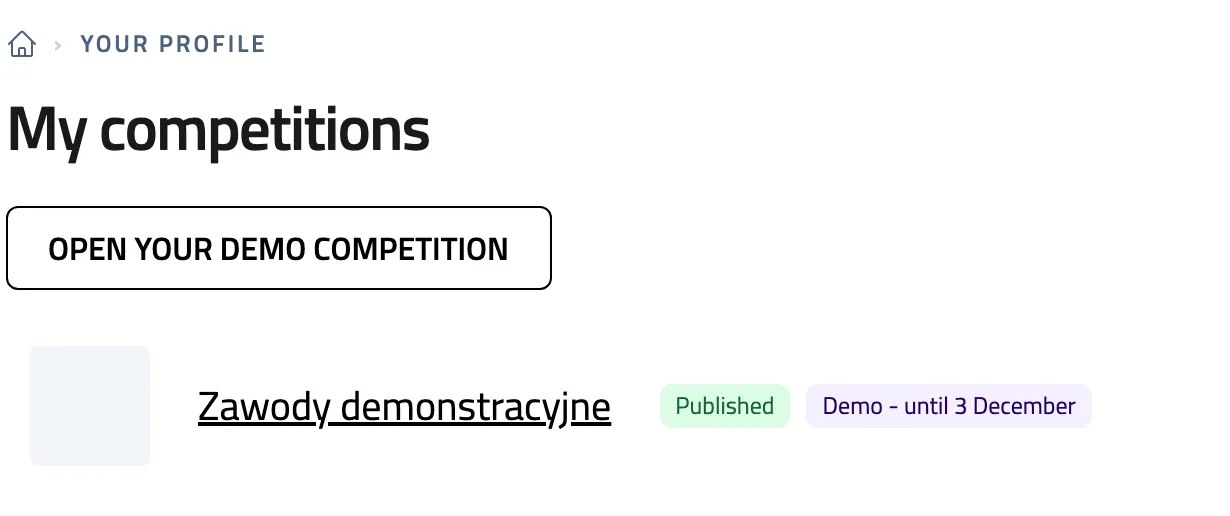
Open your competition
Go to "My competitions" and choose your competition.
-
Step 2
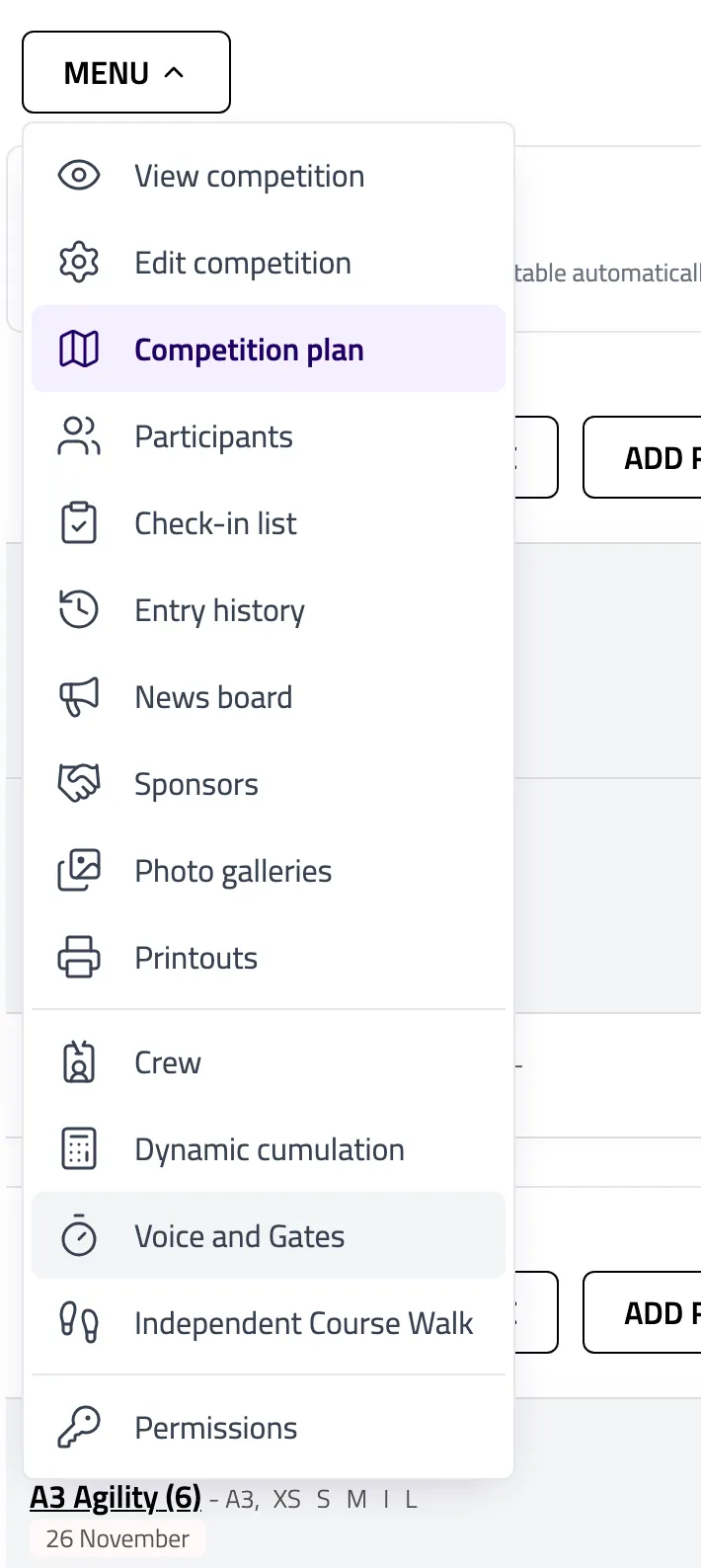
Open the voice settings
On the competition plan, click "Menu" and then "Voice and Gates".
-
Step 3
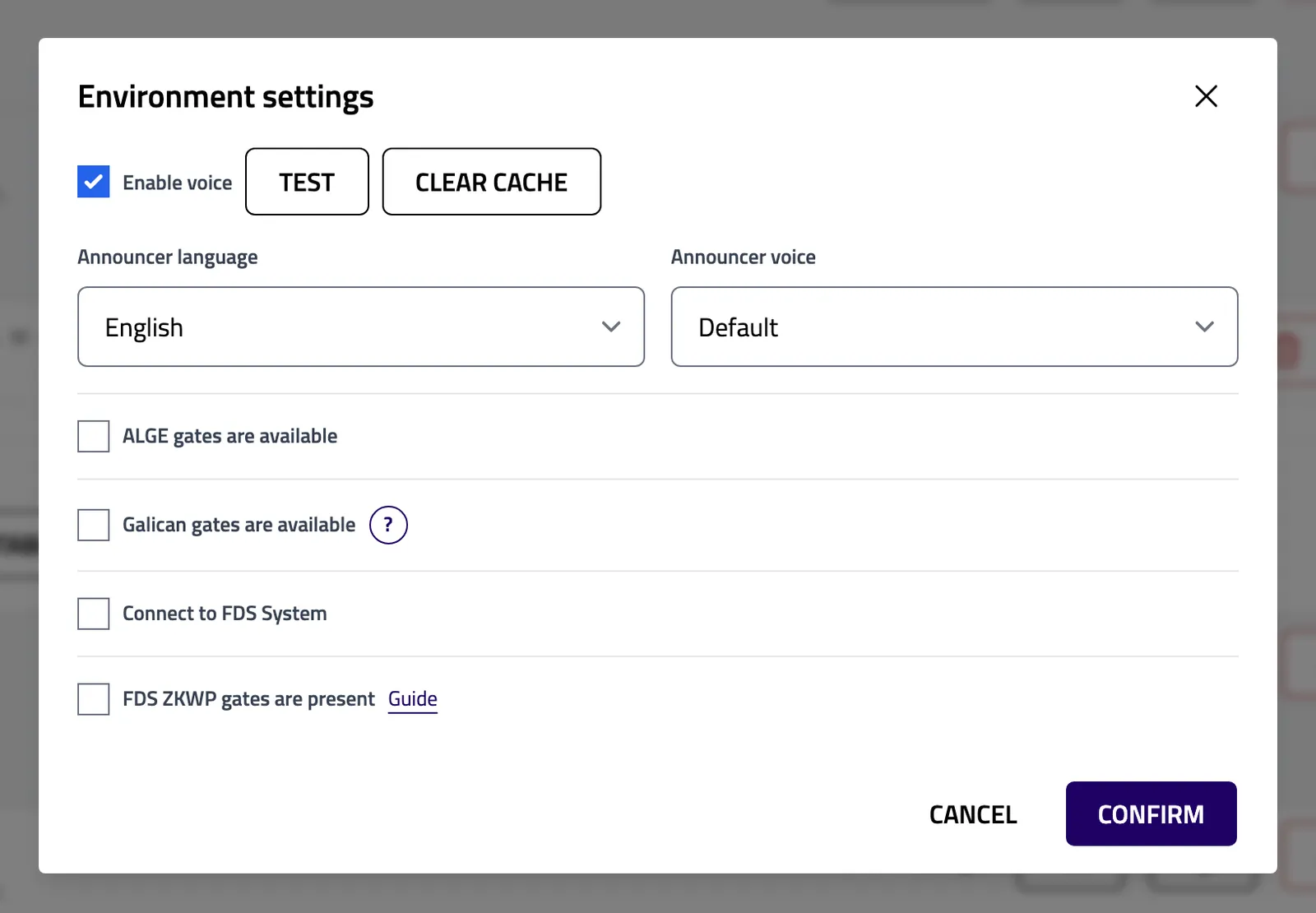
Turn the voice on
Tick "Enable voice". From then on the app reads the announcements on the run and course-walk screens.
-
Step 4
Pick the announcer's language and voice
Choose the announcement language from "Announcer language" and the voice from "Announcer voice". The announcement language does not have to match the app language.
-
Step 5
Test the voice
Click the "Test" button. The speakers play a sample announcement in the chosen language and voice.
-
Step 6
Clear outdated recordings
When an announcement sounds outdated, click "Clear cache". The app removes the recordings stored on this computer. For the next announcement it prepares new ones.
The language and voice are remembered on this device
The announcer's language and voice are remembered on this computer and in this browser, not on the account. Set them on the computer connected to the speakers. On another computer you pick them separately.
Other guides
Help
Nothing to hear?
Write to us. Tell us which browser you use and describe what you hear after clicking the test button.